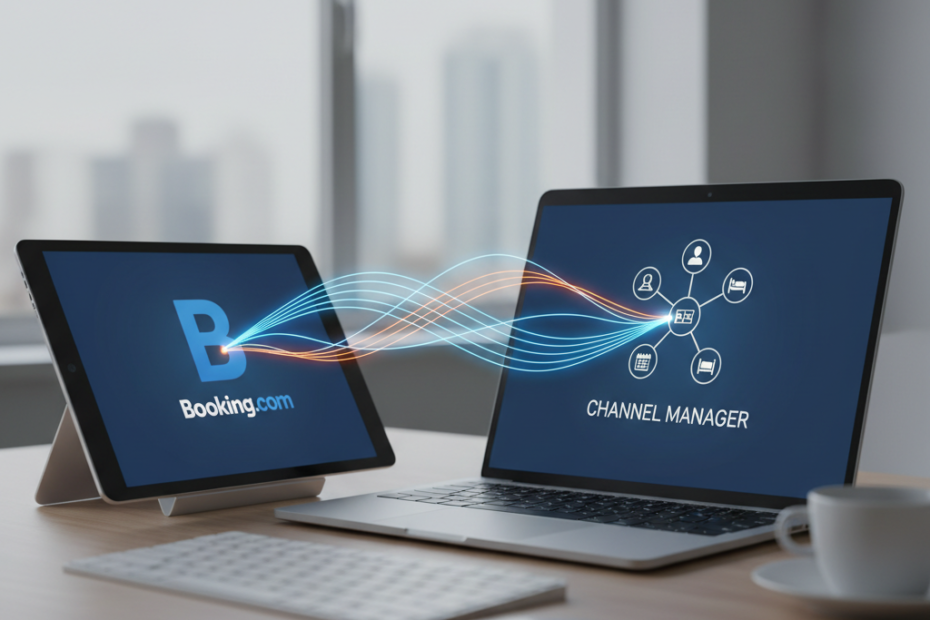
Managing multiple booking platforms can quickly become overwhelming for hotel owners and property managers. When you connect Booking.com to your channel manager, you eliminate double bookings, save hours of manual updates, and keep your inventory synchronized across all sales channels. This integration streamlines your operations and helps you focus on delivering exceptional guest experiences rather than juggling spreadsheets and calendar updates.
Understanding the Booking.com Channel Manager Integration
A channel manager acts as a central hub that connects your property management system with multiple online travel agencies (OTAs), including Booking.com. When a guest books a room on Booking.com, the channel manager automatically updates your availability across all connected platforms in real time. This two-way communication ensures that your rates, availability, and restrictions remain consistent everywhere.
The booking.com channel manager integration eliminates the risk of overbooking, which can damage your reputation and result in costly penalties. Instead of logging into multiple platforms to update rates or close out dates, you make changes once in your channel manager, and the system distributes those updates instantly. This automation saves time and reduces human error significantly.
Preparing for the Connection Process
Before you connect Booking.com with your channel manager, gather the necessary credentials and information. You need active accounts with both Booking.com and your chosen channel manager platform. Verify that your property is fully set up on Booking.com with complete room descriptions, photos, policies, and pricing structures already in place.
Most channel managers require you to have a Booking.com Extranet account with administrative access. Check that your room types, rate plans, and inventory counts match between your property management system and Booking.com. Any discrepancies should be resolved before starting the integration to prevent synchronization issues later.
How to Connect Booking.com to Channel Manager: Step-by-Step Process
The connection process varies slightly depending on your channel manager, but the core steps remain consistent across most platforms. Start by logging into your channel manager dashboard and navigating to the integrations or connections section. Look for Booking.com among the list of available OTA connections.
Click on the Booking.com connection option and select “Add New Connection” or a similar button. The system will prompt you to enter your Booking.com property ID, which you can find in your Booking.com Extranet under the property settings. Some channel managers use an XML connection that requires you to copy an API key or authentication token from Booking.com and paste it into your channel manager.
Once you submit the connection request, you typically need to authorize the integration from within your Booking.com Extranet. Navigate to the Connectivity section in your Extranet and approve the pending connection request from your channel manager. This two-way authorization ensures secure data exchange between the platforms.
Mapping Room Types and Rate Plans
After establishing the technical connection, you must map your room types and rate plans correctly. This mapping tells the channel manager which room category in your system corresponds to which room type on Booking.com. Select each room type from your channel manager and match it to the equivalent room on Booking.com.
Repeat this process for your rate plans. If you offer a standard rate, non-refundable rate, or breakfast-included rate, map each one individually. Accurate mapping prevents pricing errors and ensures that guests see the correct rates when they search for your property. Take your time with this step, as mistakes here can lead to revenue loss or guest confusion.
Testing and Verifying the Integration
Never assume the connection works perfectly without testing it first. Make a small change in your channel manager, such as closing out one room for a specific date or adjusting a rate slightly. Wait a few minutes, then log into your Booking.com Extranet and verify that the change appears correctly.
Create a test booking if your channel manager offers this feature. Some systems allow you to simulate a reservation without affecting your actual inventory. This test confirms that bookings flow properly from Booking.com into your channel manager and property management system. Monitor your first few real bookings closely to catch any issues early.
Common Issues and Quick Fixes
Connection errors often stem from incorrect property IDs or expired authentication tokens. If your integration stops working, check that your Booking.com credentials remain valid and that no passwords have changed. Some channel managers require you to reauthorize the connection periodically for security reasons.
Mapping mistakes cause many synchronization problems. If rates or availability look wrong on Booking.com, review your room type and rate plan mappings carefully. Unmapped rooms will not receive updates from your channel manager, creating inconsistencies that confuse potential guests.
Optimizing Your Channel Manager Setup
Once your connection functions properly, configure your settings to maximize efficiency. Set up automated rules for minimum stay requirements, close-to-arrival restrictions, and advance booking windows. These rules help you control your inventory strategically without constant manual intervention.
Enable rate parity monitoring if your channel manager offers this feature. This tool alerts you when your rates differ across channels, helping you maintain compliance with Booking.com’s rate parity requirements. Consistent pricing protects your relationship with OTAs and builds trust with guests who compare prices across platforms.
Schedule regular audits of your integration to ensure everything remains synchronized. Check your availability calendar weekly and compare it across your channel manager, Booking.com, and any other connected platforms. Address discrepancies immediately to prevent booking conflicts.
Maintaining Your Booking.com Channel Manager Connection
Technology evolves constantly, and both Booking.com and channel manager platforms release updates regularly. Stay informed about system maintenance windows and software upgrades that might temporarily affect your connection. Subscribe to notifications from both platforms to receive advance warning of changes.
Train your staff on how the integration works and what actions might disrupt it. Team members should understand that they must make inventory changes through the channel manager rather than directly in the Booking.com Extranet. Direct changes in the Extranet can create conflicts that override your channel manager settings.
When you connect Booking.com to your channel manager successfully, you gain control over your distribution strategy and reduce the administrative burden of managing multiple platforms. This integration represents a critical step toward professional revenue management and operational efficiency. Monitor your connection regularly, keep your mappings accurate, and leverage automation tools to maximize the benefits of this powerful integration.