Google Hotel Ads puts your property in front of millions of travelers searching for accommodations. Connecting it through your channel manager streamlines inventory management and booking distribution. This guide walks you through the setup process, explains why integration matters, and shows you how to make the connection work for your hotel. Whether you use Aiosell Channel Manager or another platform, these steps will help you tap into Google’s massive search audience without managing multiple systems manually.
Why Connect Google Hotel Ads Through Your Channel Manager
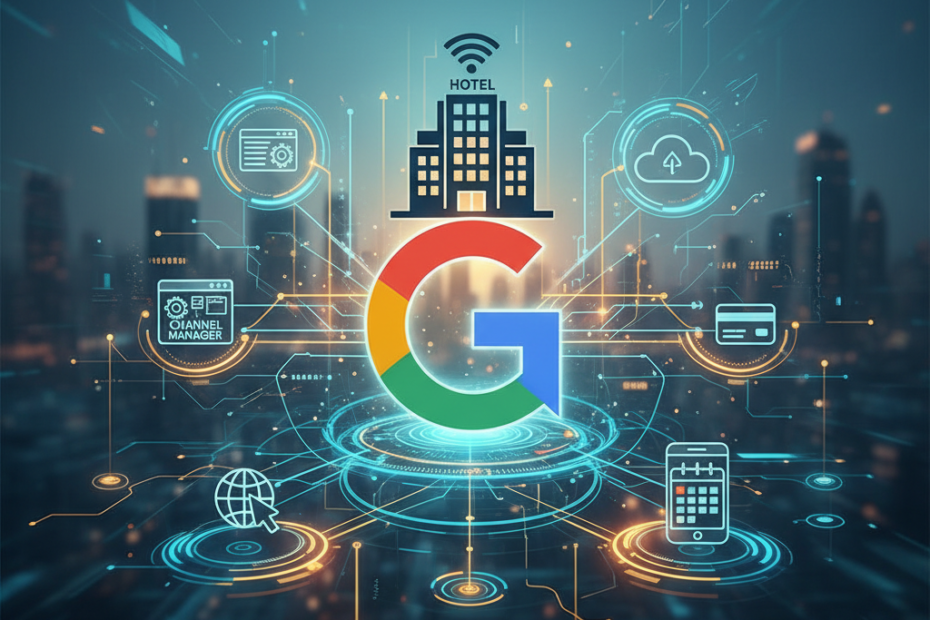
Managing rates and availability across multiple platforms can quickly become overwhelming. When you connect Google Hotel Ads through your channel manager, you eliminate the need to update inventory in multiple places. Your channel manager acts as a central hub that pushes real-time data to Google and other distribution channels simultaneously.
This integration reduces the risk of overbookings and rate discrepancies. When a guest books through Google Hotel Ads, your channel manager automatically updates availability across all connected platforms. You save time, reduce errors, and maintain accurate pricing across every channel where your property appears.
Prerequisites for Google Hotel Ads Integration
Before you start the connection process, you need several things in place. First, your hotel must have a Google Hotel Center account. This free account serves as your gateway to Google Hotel Ads and requires basic property information, including your hotel name, address, and contact details.
You also need an active account with a channel manager that supports Google Hotel Ads integration. Most modern channel managers, including Aiosell Channel Manager, offer this capability. Verify that your channel manager includes Google as a supported distribution partner before proceeding.
Required Documentation and Access
Gather your property identification details, tax information, and payment preferences. Google requires verification of your hotel’s legitimacy, so have your business registration documents ready. You will also need administrative access to both your channel manager dashboard and your Google Hotel Center account to complete the integration.
Step-by-Step Connection Process
The connection process typically follows a standard workflow, though specific steps may vary slightly depending on your channel manager. Start by logging into your Google Hotel Center account and navigating to the connectivity section. Here you will find options to connect through various integration partners.
Next, access your channel manager dashboard and locate the distribution or channel connections section. Look for Google Hotel Ads among the available channels. Most channel managers present this as a tile or menu option labeled “Google Hotel Ads” or “Google Free Booking Links.”
Linking Your Accounts
Click the option to connect or enable Google Hotel Ads within your channel manager. The system will prompt you to authorize the connection between your channel manager and Google Hotel Center. This authorization allows your channel manager to send inventory data to Google on your behalf.
You may need to copy an API key or authorization code from Google Hotel Center and paste it into your channel manager. Some platforms streamline this with a single-click OAuth authentication. Follow the on-screen prompts to complete the authorization handshake between both systems.
Mapping Your Property Data
After authorization, you need to map your property information correctly. This step ensures that your room types, rates, and availability data flow to the right listings on Google. Your channel manager will display your room categories and ask you to match them with corresponding listings in Google Hotel Center.
Take time to verify each mapping. A mismatch here can result in incorrect pricing or availability showing on Google. Double-check room names, bed configurations, and occupancy limits to ensure they align between both platforms.
Configuring Rate and Availability Settings
Once the connection is live, configure how your channel manager sends rate and availability updates to Google. Most channel managers offer settings that control update frequency, rate types, and inventory allocation. Decide whether you want to push the same rates you offer on your website or apply channel-specific pricing strategies.
Set your minimum and maximum stay requirements, cancellation policies, and any restrictions you want Google to enforce. These rules help manage bookings and prevent reservations that do not align with your property’s policies. Your channel manager should allow you to define these parameters at the room-type level for maximum flexibility.
Testing the Connection
Before going live, test the integration thoroughly. Create a test booking or adjust a rate in your channel manager and verify that the change appears on Google Hotel Ads within the expected timeframe. Most integrations update within minutes, though some may take up to an hour during initial setup.
Check for error messages in your channel manager’s logs or notifications panel. Address any connectivity issues immediately to ensure smooth operation. If rates or availability do not sync correctly, review your mapping settings and API credentials.
Best Practices for Managing Your Google Hotel Ads Connection
Monitor your integration regularly to catch issues before they affect bookings. Set up alerts in your channel manager to notify you of sync failures or connectivity problems. Regular monitoring helps you maintain accurate listings and avoid revenue loss from outdated information.
Keep your rate parity consistent across all channels, including Google Hotel Ads. Rate discrepancies can confuse guests and damage your property’s reputation. Use your channel manager’s bulk update features to adjust rates across all channels simultaneously when needed.
Optimizing Performance
Review your Google Hotel Ads performance metrics within Google Hotel Center. Track impressions, clicks, and conversion rates to understand how travelers interact with your listings. Use this data to refine your pricing strategy and improve your property’s visibility in search results.
Update your property photos, descriptions, and amenities regularly. While your channel manager handles rates and availability, you manage content directly in Google Hotel Center. Fresh, accurate information improves your appeal to potential guests browsing search results.
Troubleshooting Common Integration Issues
Connection errors occasionally occur, even with properly configured integrations. If your rates stop syncing, first check your API credentials and verify that your channel manager still has authorization to access Google Hotel Center. Expired tokens or changed passwords can break the connection.
Inventory discrepancies often stem from mapping errors. If a room type shows incorrect availability on Google, revisit your property mapping settings in your channel manager. Ensure each room category links to the correct listing in Google Hotel Center.
Conclusion
Connecting Google Hotel Ads through your channel manager opens your property to a vast audience of travelers actively searching for accommodations. The integration streamlines operations, reduces manual work, and helps you maintain accurate information across all distribution channels. By following these steps and monitoring your connection regularly, you can maximize bookings from Google while keeping your inventory management efficient. Take the time to set up the integration correctly, test thoroughly, and optimize your listings for the best results.